Walk into many UK small and medium-sized businesses and you will still find important work happening in desktop software: a dispatch tool in a Midlands warehouse, a quoting application in an engineering firm, a till-side utility in a chain of shops, or a document-processing tool used by a team of paralegals. Some of these programs are decades old, tied to one version of Windows and maintained by a single person.
When the time comes to replace them, the default answer is often “make it a web app”. Frequently that is right. Sometimes, though, the work genuinely needs a desktop application: it must run offline, talk to local hardware or files, or feel like a native tool. Electron.js is one of the most practical ways to build that kind of application today. This article explains when it makes sense for a UK business, where its limits are, and how to ship and maintain it responsibly.
Key takeaways
- Electron builds cross-platform desktop apps for Windows, macOS and Linux using web technologies.
- It suits apps that need offline work, local files or devices, and a shared codebase with an existing web product.
- Its main trade-offs are larger installers and higher memory use than fully native apps.
- Security settings, code signing and automatic updates are essential, not optional extras.
- For UK organisations, a disciplined update process also supports Cyber Essentials expectations around patching.
What Electron is, in plain English
Electron is an open-source framework for building cross-platform desktop applications using web technologies such as HTML, CSS and JavaScript. Each app bundles the Chromium rendering engine to draw its interface and Node.js to access the operating system. In practice that means a team that already builds websites in React can build a desktop program with the same skills and, often, much of the same code.
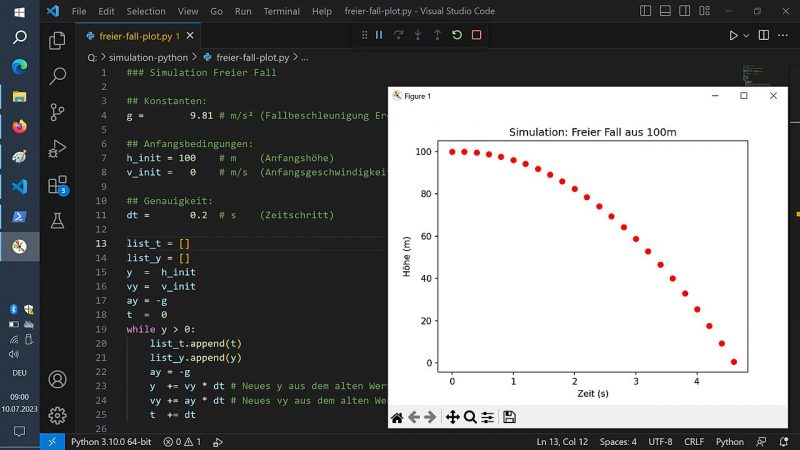
Well-known tools such as Visual Studio Code, Slack’s desktop client and Microsoft Teams (in its earlier versions) were built this way, which shows the approach can scale to demanding, widely used software.
When a desktop app is the right call
Before choosing Electron, check whether you need a desktop application at all. These are the situations where we usually recommend one:
| Situation | Why desktop helps | UK examples |
|---|---|---|
| Unreliable connectivity | The app keeps working offline and syncs later | Site surveyors, rural field engineers, mobile clinics |
| Local hardware | Direct access to printers, scanners, scales, barcode readers or serial devices | Warehouses, labs, retail back offices |
| Large local files | Processing big documents or media without uploading them first | Legal bundles, engineering drawings, video editing |
| Kiosk or locked-down devices | A single full-screen app with controlled behaviour | Reception check-in, factory-floor terminals |
| Heavy daily use | Keyboard shortcuts, multiple windows, system tray, notifications | Contact centres, operations control rooms |
If none of these apply, a responsive web application or progressive web app is usually cheaper to build and easier to maintain. Our web development team can help you compare both options honestly.
Questions to ask before deciding
- Will users ever need to work where there is no reliable connection?
- Does the software need to read or control anything physically attached to the computer?
- How large are the files people work with, and are they allowed to leave the device?
- Who will install and update the software, and do they use a device-management tool?
- Is there already a web product whose code and design we could reuse?
If the answers point mostly towards connectivity, hardware or large local files, a desktop app is likely to repay the extra packaging and update work.
Electron compared with the alternatives
Native development
Writing separate apps in C#/.NET for Windows and Swift for macOS gives the best performance and the most native feel, but doubles much of the work. It is the right choice for graphics-heavy or performance-critical software.
Tauri and other lightweight frameworks
Tauri uses the operating system’s own web view and a Rust back end, producing much smaller installers. It is maturing quickly and worth considering when download size matters, although its ecosystem is younger and the rendering engine differs between platforms.
Progressive web apps
PWAs can be installed from the browser and work offline to a degree, but their access to hardware and the file system is more limited and varies by browser.
Choose the technology after you understand the job the software has to do on the user’s desk, not before.
The trade-offs to accept with Electron
- Size: installers are commonly tens of megabytes or more because each app ships its own browser engine.
- Memory: Electron apps typically use more RAM than equivalent native tools. On older office PCs, this needs testing early.
- Update responsibility: because Chromium is bundled, your app must be updated regularly to receive security fixes. Abandoned Electron apps age badly.
- Platform polish: menus, shortcuts and accessibility need deliberate work to feel at home on both Windows and macOS.
For most line-of-business software these trade-offs are acceptable, particularly when weighed against the cost of maintaining two native codebases.
Building it securely
Electron has a strong security model when it is configured properly, and a weak one when it is not. Treat these as baseline requirements:
- Keep
contextIsolationenabled andnodeIntegrationdisabled for any window that renders content. - Expose only narrow, explicit functions from a preload script rather than full Node.js access.
- Never load remote websites into privileged windows; open external links in the user’s normal browser.
- Apply a strict Content Security Policy and validate every message passed between processes.
- Store secrets in the operating system’s credential store, not in plain configuration files.
- Keep Electron itself on a supported version and update dependencies on a regular schedule.
Accessibility and everyday usability
Desktop tools are often used for hours a day, so small usability problems become real costs. Because Electron renders with Chromium, the same accessibility techniques used on the web apply: semantic HTML, proper labels, visible focus states and good colour contrast, which together support screen readers such as NVDA, JAWS and VoiceOver. Add full keyboard operation, sensible shortcuts that follow each platform’s conventions and respect for the user’s system settings for text size and reduced motion. Under the Equality Act 2010, employers need to make reasonable adjustments for disabled staff, and an accessible internal tool makes that far easier.
Code signing and trusted installation
Unsigned software triggers warnings in Windows SmartScreen and is blocked by macOS Gatekeeper. Sign Windows installers with a code-signing certificate and sign and notarise macOS builds through Apple’s developer programme. Signed builds reassure staff and make life easier for IT teams deploying through Microsoft Intune or similar tools.
Updates, deployment and Cyber Essentials
Many UK organisations hold Cyber Essentials certification or require it from suppliers. The scheme expects software to be licensed and supported, and security updates for high-risk and critical vulnerabilities to be applied within 14 days of release. A desktop application you commission becomes part of that picture.
- Use an auto-update mechanism so security fixes reach every installation quickly.
- Publish release notes and keep a record of which version is installed where.
- Provide MSI or MSIX packages if your IT team deploys software centrally.
- Agree in your support contract how quickly the supplier will ship a fix when a vulnerability is announced in Electron or a dependency.
For larger rollouts, release updates in stages: a small pilot group first, then the rest of the organisation once no problems appear. Keep the ability to roll back to the previous version quickly if an update causes trouble with a particular device or driver.
Architecture that keeps options open
A good Electron app keeps its business logic separate from the desktop shell. The interface is built in React or a similar framework, local data lives in SQLite or an encrypted store, and synchronisation happens through a secure API in the cloud. This structure lets you share most of the code with a web version later and keeps the desktop layer thin. Our cloud and DevOps team usually builds the sync API and release pipeline alongside the app.
Offline sync done properly
Offline working is often the main reason for choosing a desktop app, and it is also where most bugs hide. Decide early how conflicts are resolved when two people edit the same record while disconnected: last write wins, field-level merging, or flagging the conflict for a person to review. Queue changes locally with timestamps, retry synchronisation automatically, show users clearly what has and has not been uploaded, and encrypt the local database so a lost laptop does not become a data breach.
Testing across real devices
Automated tests cover the business logic, but desktop apps also need checks on the machines your staff actually use. Keep a small test matrix of the Windows and macOS versions in your estate, common screen resolutions and the specific printers or scanners the app talks to, and run through it before every significant release.
Budget and timeline in pounds
Costs vary with features, integrations and the number of platforms. The ranges below are indicative for a small business application built by an experienced team.
| Scope | Typical contents | Indicative range | Timeline |
|---|---|---|---|
| Utility or internal tool | A few screens, local files, simple export | £6,000 – £15,000 | 4–8 weeks |
| Business application | Offline mode, cloud sync, user roles, hardware integration | £18,000 – £45,000 | 2–4 months |
| Product for external customers | Licensing, auto-updates, multi-platform signing, analytics | £45,000+ | 4–8 months |
Remember to budget for code-signing certificates, the Apple developer programme and ongoing updates. Creensight UK’s projects are delivered by the engineering team of Creensight Private Limited in India, which helps keep budgets competitive while the UK office handles discovery and communication.
Not sure whether you need a desktop, web or mobile application? Our custom software development discovery phase compares the options against your real workflows before any build starts.
Frequently asked questions
Will an Electron app run on our older Windows PCs?
Electron supports current Windows versions. Very old operating systems may not be supported by recent Electron releases, so check your estate early and plan upgrades where needed.
Can the same app run on Mac and Windows?
Yes. One codebase produces builds for Windows, macOS and Linux, although each platform needs its own testing, signing and packaging.
Can the app work without the internet?
Yes, if it is designed for offline use with local storage and a reliable sync process when the connection returns.
Is Electron secure enough for business data?
It can be, provided it is configured with the security settings above and kept up to date. Most real-world problems come from outdated versions or unsafe configuration. See our FAQ for how we handle support after launch.
Replace your ageing desktop software
If a critical program in your business runs on one old PC and one person’s memory, it is worth planning its replacement before it fails. Contact Creensight UK to discuss whether Electron, a web app or another approach is the best fit.